
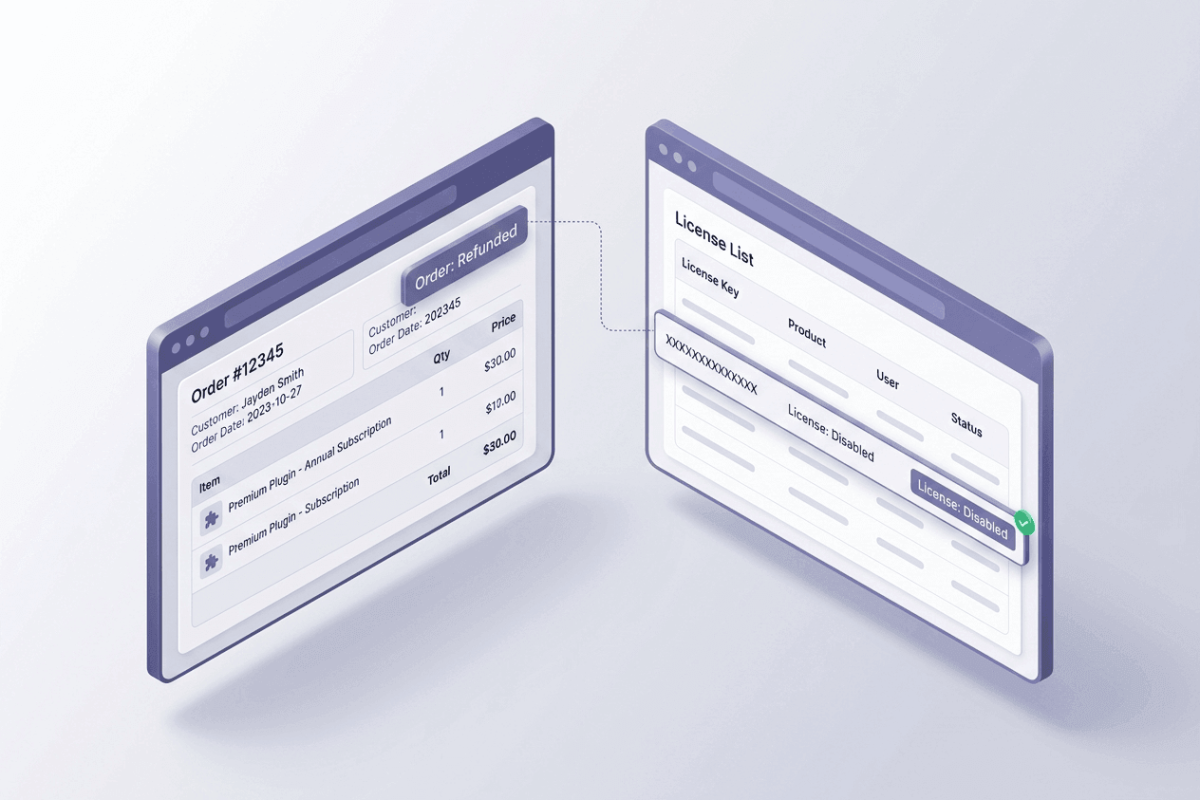
WooCommerce License Automation: What Should Happen After Payment, Refund or Order Cancellation?
Written by Towhid Islam. Posted in Elite Licenser, WooCommerce, WordPress
If you sell plugins, themes, or other software through WooCommerce, every order creates a small obligation. The customer pays, and a license key has to reach them. Later the order may be refunded, cancelled, or left unpaid, and the key has to change with it. WooCommerce license automation ties the state of a license to the state of the order, so nobody has to update keys by hand.
Most stores handle the first half well. A key is issued, an email goes out, and the customer activates the product. The second half is where problems start. A refunded order can leave a working key behind. A failed payment can leave a key that was issued too early. A subscription can lapse while the license still shows as valid.
This guide explains what should happen to a license after payment, after a refund, after a cancellation, and after a failed payment. It also covers chargebacks and subscription renewals, shows how to find mismatches between orders and licenses, and walks through a setup with Elite Licenser, a WordPress license manager plugin that has a WooCommerce add-on. WooCommerce license automation is easier to set up when the rules are written down before any plugin is installed, so the guide starts with the rules.
What Is WooCommerce License Automation?
WooCommerce license automation means that license keys are created, changed, and disabled by rules that react to order events. The rules replace manual work, such as copying a key from a spreadsheet into an email or searching the order list for refunds.
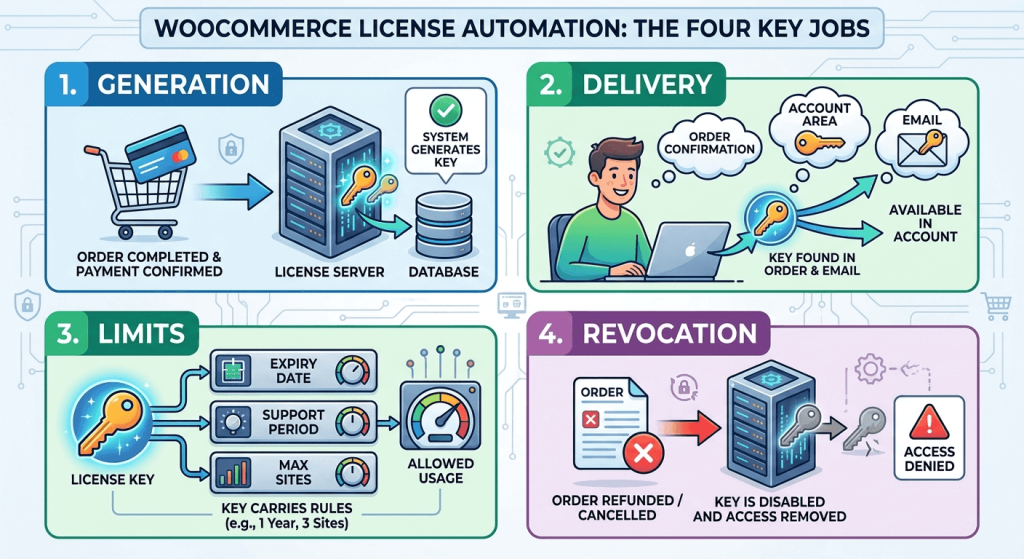
A complete setup covers four jobs:
- Generation:the system can generate license keys automatically when payment is confirmed.
- Delivery:the customer can find the key in the order, in an email, or in an account area.
- Limits:the key carries rules, such as an expiry date, a support period, and a maximum number of sites.
- Revocation:the key is disabled when the order is refunded, cancelled, or fails.
WooCommerce does not generate software license keys by itself. A licensing extension or custom code adds that function. WooCommerce digital product licensing usually has two parts: a license server that stores keys and rules, and a connector that watches orders and tells the server what to do. For background, read about what software license management is and how a license key works.
Why Licenses and Orders Drift Apart
In WooCommerce digital product licensing, an order and a license are two separate records. WooCommerce owns the order. The license server owns the key. Without WooCommerce license automation, nothing connects a change in the order to a change in the key, and the two records drift apart.
What the problem looks like
- A customer receives a full refund, and the key stays active on their site.
- A card is declined, but a key was already emailed.
- A customer cancels an order, and support has to find the matching key by hand.
- A yearly renewal goes unpaid, and the license is still valid months later.
- An order for three seats produces one key, or three keys for one seat.
Common causes
- Manual key handling.Someone copies keys by hand, so refunds and cancellations depend on memory.
- The wrong trigger.The key is generated when the order is placed, before payment is confirmed.
- One-way rules.A rule creates keys but has no matching rule for refunds or cancellations.
- Partial refunds.The order keeps its status, so a rule based on the WooCommerce order status does not notice the refund.
- Payment delays.Some gateways confirm payments late, so an order can stay in Pending payment for a while before it changes.
- Manual status changes.Staff or other plugins change an order status outside the normal flow.
- Separate renewal logic.Renewals run through a different process than first orders.
A WooCommerce license automation setup addresses most of these causes by linking key changes to order events. The costs of leaving them open are practical: revenue lost on refunded orders that still use the product, support time spent fixing single records, and license counts that no longer match sales.
WooCommerce Order Status Rules for License Automation
Every order has a status that shows where it stands in checkout, payment, fulfillment, cancellation, or refund. The WooCommerce order statuses documentation lists them. A license rule should follow the WooCommerce order status, not the moment the order is placed. This is the base of any WooCommerce license automation setup.
WooCommerce order status | What it means | Suggested license action |
Pending payment | The order was received, but no payment has been made | Do not issue a key |
On hold | The order is waiting for payment confirmation | Do not issue a key, or keep it suspended |
Processing | Payment has been received | Generate the key |
Completed | The order is fulfilled | Keep the key active; generate it if it does not exist yet |
Failed | The payment failed or was declined | Do not issue a key, or disable it |
Cancelled | An admin or the customer cancelled the order | Disable the key |
Refunded | The full order value was refunded | Disable the key |
Two details affect these rules.
First, WooCommerce applies the Refunded status when the full value of an order is refunded. A partial refund is recorded on the order, but the order normally keeps its current status. A rule that only listens for Refunded will not react to a partial refund.
Second, orders that contain only virtual, downloadable products normally move from Processing to Completed on their own after payment. Orders with physical items stay in Processing until staff complete them. If key generation waits for Completed, a mixed order can delay the key. For digital products, generating the key at payment is usually the safer choice.
What Should Happen After Payment
Generate license keys automatically after payment
In WooCommerce license automation, payment is the event that starts a license. The trigger should be a paid status, usually Processing or Completed. The system should generate license keys automatically after payment and never before it. License key generation should start only when payment is confirmed, because the order can still fail or be cancelled until then. Each key takes its limits from the product or license type: how long it lasts, how long support is included, and how many sites can use it.
Decide early what quantity means. Some stores issue one key per unit, so three purchases produce three keys with one site each. Others issue one key with three site slots. Both approaches work, but the choice should be the same for every product.
Deliver the key where customers look
A key that customers cannot find creates support tickets. Show it in at least two places: the order details page and the order email. A separate customer license area also helps when customers need to move a key to a new domain or check an expiry date.
Do not create duplicates
Orders change status more than once. A move from Processing to Completed should not create a second key for the same order item. Test this before launch, because duplicate keys make refund handling harder.
What Should Happen After a Refund
Full refunds
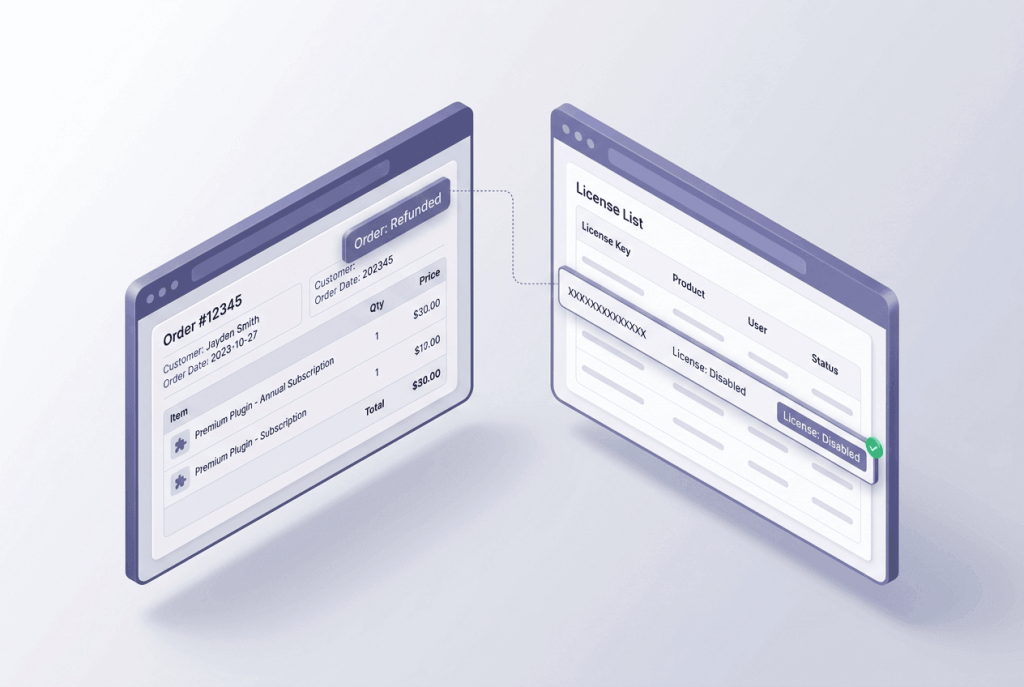
A full refund means the purchase no longer stands, so the license should be disabled. To revoke a license key at the right moment, the rule should react to the Refunded status instead of relying on a support agent to remember. This is where WooCommerce license automation saves the most manual work. A store that can disable a license after a refund without human help also avoids the delay between the refund and the cleanup.
Partial refunds
Partial refunds need a policy, because the right result depends on what was refunded:
- One item in a multi-item order:disable the key for that item and keep the others.
- A support add-on or a goodwill amount:the key usually stays active.
- A large share of the order value:decide whether the refund ends the license, and apply the same rule every time.
Because the order status stays the same, partial refunds often need a manual step or a custom rule. Write the policy down so the whole team handles them the same way.
What disabling does and does not do
Disabling a key stops new activations and stops future license checks from passing. It does not remove the plugin or theme from the customer’s site. What the product does after a failed check is defined in your own code. It might lock premium features, stop updates, or show a notice. Decide this before you need it. Keep the disabled record instead of deleting it, so the history and activation logs remain.
Tell the customer as well. A short line in the refund email saying that the license has been disabled avoids confusion later.
What Happens to a License Key When an Order Is Cancelled?
WooCommerce sets the Cancelled status when an admin or the customer cancels an order. The question is whether a key already exists. What happens to a license key when an order is cancelled depends on the stage of the order:
- Cancelled before payment:no paid key should exist. If your system issued one early, disable it.
- Cancelled after payment:treat the order like a refund. Revoke a license key on cancellation, and issue the refund separately if money is owed.
- Failed payments:a Failed order has no successful payment, so the key should not be active.
- Unpaid orders that expire:when stock management is enabled, WooCommerce can cancel unpaid orders after the Hold stock period set in the inventory settings. The license rule should treat these like any other cancellation.
WooCommerce license automation should also work in the other direction. A customer whose payment fails can retry, and the order may then move to Processing. If your rule only disables keys and never re-enables them, a paid customer stays locked out. Test the path from Failed or Cancelled back to a paid status.
Chargebacks and Payment Disputes
A chargeback is not a WooCommerce order status. It starts at the card issuer and reaches you through your payment processor. Some gateway plugins change the order status when a dispute opens, and others do not, so check what yours does.
Decide on a policy before the first dispute. Some stores suspend the key while the dispute is open and restore it if they win. Others revoke a license key at once. Either way, WooCommerce license automation cannot help if the dispute never changes the order status, so the license server needs a way to change a key by hand.
Subscription Renewals, Expiry, and Cancellation
Renewals add a time element to WooCommerce license automation, because a date as well as an order event can change a license. The WooCommerce Subscriptions status guide describes six statuses: Pending, Active, On Hold, Pending Cancellation, Cancelled, and Expired. When a customer cancels, the status usually moves to Pending Cancellation first, and the subscription stays usable until the prepaid term ends. A subscription renewal license should follow the same path:
Subscription status | Suggested license action |
Active | Key active |
Pending Cancellation | Key active until the end of the paid term |
On Hold | Key suspended, with a grace period if your policy has one |
Cancelled | Key disabled |
Expired | Key expired |
Licenses that are not tied to a subscription can still expire by date. In Elite Licenser, a license type can have an expiry set in days, so a license type set to 365 days expires after a year. The trade-offs between yearly and one-time models are covered in annual vs lifetime WordPress plugin licensing.
How to Diagnose License and Order Mismatches
Run this check on a recent period, such as the last 90 days. It gives you a baseline before you set up WooCommerce license automation, and you can repeat it afterward to confirm the change.
- List problem orders.In WooCommerce, filter orders by Refunded, Cancelled, and Failed.
- Check the matching licenses.Look up each order in your license server and note the key status.
- Compare dates.Check whether the key was used after the refund or cancellation date. Activation logs help here.
- Read the order notes.Notes show when the status changed and what changed it.
- Check gateway logs.For orders stuck in Pending payment, open WooCommerce > Status > Logs and read the entries for the payment gateway.
- Compare quantities.Check that license key generation matched the quantity on each paid order.
- Reproduce the issue.Place a test order and repeat the status change.
Manual, Custom Code, or a Plugin: Choosing a WooCommerce License Automation Approach
The right approach to WooCommerce digital product licensing depends on order volume and team size.
Approach | Works best when | Limits |
Manual review | Order volume is very low | Depends on people, so refunds and cancellations get missed |
Custom code with WooCommerce hooks | You have a developer and unusual rules | You write, test, and maintain every status path |
A WooCommerce license manager plugin | You want standard rules with limited custom work | Edge cases, such as partial refunds, may still need extra handling |
A WooCommerce license manager does not replace a policy. It applies the policy the same way every time. The same is true for any WordPress license manager plugin. If you are still comparing tools, the guide on choosing a WordPress plugin license manager lists the questions to ask.
How Elite Licenser Handles Order Events in WooCommerce
Elite Licenser is a WordPress license manager plugin for product licensing. Stores that want WooCommerce license automation use it with the Elite Licenser WooCommerce add-on, which needs the main plugin to work. Together they act as a WooCommerce license manager. According to the add-ons documentation, the add-on handles WooCommerce digital product licensing and can:
- generate a license code for a WooCommerce digital product;
- show the license code in the order details;
- disable a license after a refund, a cancellation, or a failed order, without manual work.
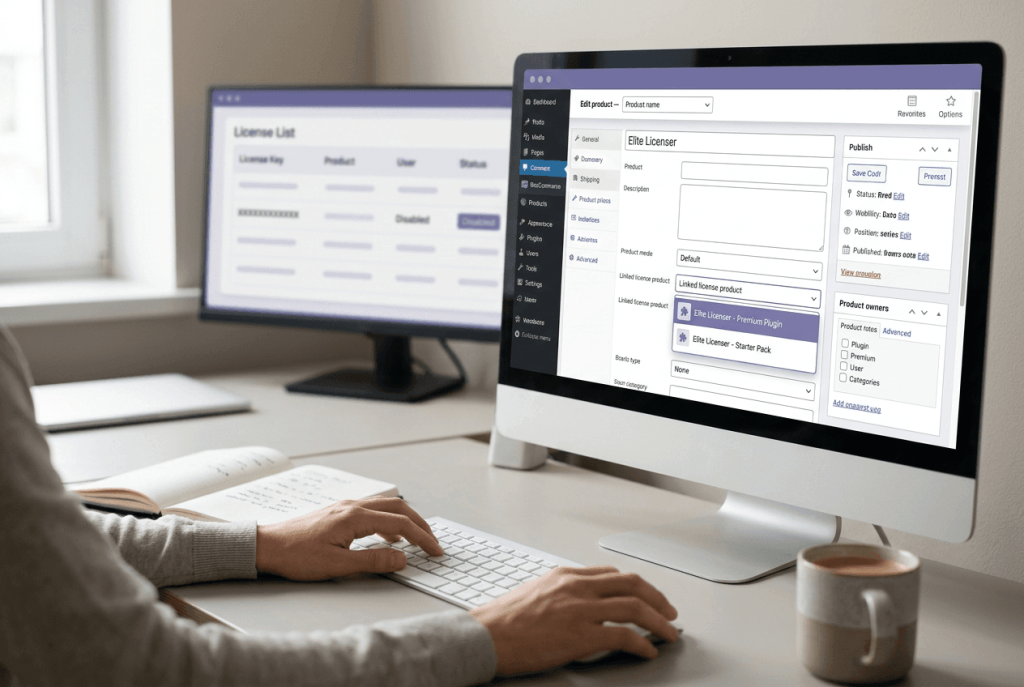
The add-on’s page in the WordPress plugin directory adds more detail. After you link a WooCommerce product to an Elite Licenser product, the add-on can generate license keys automatically for each mapped product, based on the quantity ordered. The link can be set on variations as well as simple products. The changelog also lists WooCommerce Subscriptions support, subscription renewal license handling, and handling for the payment complete, processing, and completed order states.
Elite Licenser itself supplies the rules that each key carries. A license type can set an expiry in days, a support period, a maximum number of domains, and how many domains can activate before manual verification is required. The license list shows activated domains and a domain log. From there, an admin can set a license to Active, Inactive, Free, or Refunded, or remove a key remotely. Webhooks can send data to another application when selected events happen, and the email templates can be edited. For customer self-service, the Elite Member Area add-on offers a license portal.
What the documentation does not say. The public documentation says the add-on disables the license key when an order is cancelled, refunded, or failed. It does not describe how the add-on treats partial refunds, chargebacks, or a return from Failed to a paid status. Treat those as items to test on your own site, and plan a manual step or a custom rule if the result does not match your policy.
Step-by-Step: Set Up WooCommerce License Automation With Elite Licenser
These steps use Elite Licenser as the WordPress license manager plugin and follow the official docs and the add-on setup guide. The setup guide on AppsBD was published in 2022 for an earlier version of the add-on. The add-on’s admin panel was rebuilt in version 2.0, so labels may differ from the screenshots.
- Install Elite Licenser.Follow the installation guide on the site that will act as your license server.
- Add your product.Create the product in Elite Licenser using the product documentation.
- Create license types.Set the expiry, support days, maximum domains, and verification threshold for each type you sell.
- Install the WooCommerce add-on.Install and activate it on your store. Its settings are under WooCommerce > Elite Licenser Settings.
- Choose the connection mode.The add-on can connect to Elite Licenser on a remote server or on the same site. The 2022 guide recommends the remote option, and it is required when the license server is on a separate site or subdomain.
- Enter the API details.Copy the API endpoint from the Elite Licenser settings and an API key from its API list, then paste both into the add-on.
- Set the order-event options.The 2022 guide describes switches for refunds, cancellations, and failed orders. Turn on the ones that let you disable a license after a refund, cancellation, or failed payment in line with your written policy.
- Link your products.In each WooCommerce product, and each variation if you use them, pick the matching Elite Licenser product in the product meta box.
- Review the emails.Edit the templates so customers get clear instructions for using their key.
- Run the test plan below.Do this before any real customer places an order.
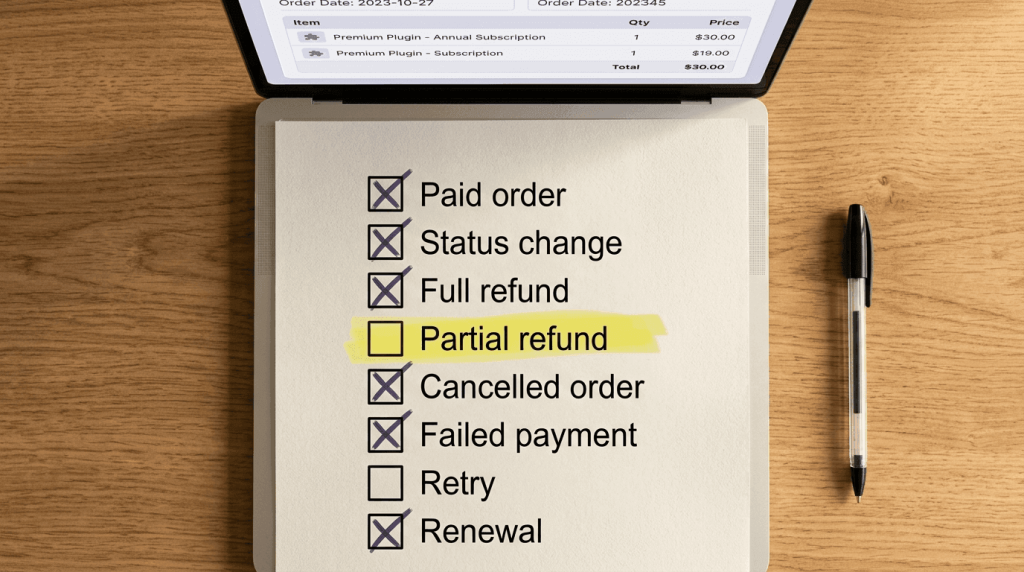
Test Your WooCommerce License Automation Before Going Live
Use a staging site or your payment gateway’s test mode where possible.
Test | Action | Expected result |
Paid order | Place and pay for an order to check license key generation | The right number of keys, visible in order details and email |
Status change | Move the order from Processing to Completed | No duplicate key |
Full refund | Refund the whole order | Key disabled |
Partial refund | Refund one item | Result matches your written policy |
Cancelled order | Cancel an order | Key disabled |
Failed payment | Use a payment that fails | No active key |
Retry | Pay an order that failed earlier | Key active again |
Subscription renewal license | Run a subscription renewal | License term extended, if your policy says so |
After the table, confirm on an installed test site that a disabled key stops working the way your product is meant to react. Also note how long it takes for the change to reach the product.
Common WooCommerce License Automation Mistakes to Avoid
- Starting license key generation when the order is created.The order may never be paid.
- Testing only the successful path.Refunds, cancellations, and retries often go untested.
- Ignoring partial refunds.The status does not change, so the license does not change either.
- Deleting disabled keys.You lose the history that helps in disputes.
- Allowing unlimited activations.A key without a site limit is easy to share. Use the maximum domain setting.
- Sending no customer message.Customers should be told when a license is disabled.
- Assuming a disabled key removes the software.It only changes what your product reads when it checks the license.
- Mixing test and live data.Test orders can leave active keys behind.
- Relying on staff to disable a license after a refund.Manual steps get skipped in busy weeks.
- Choosing a WooCommerce license manager before writing the policy.The tool should follow the rules, not set them.
When You May Need Technical Help
Standard WooCommerce license automation rules cover most stores. Ask a developer for help if you have partial-refund rules based on item or amount, custom order statuses, several stores writing to one license server, or gateways that report payments through delayed callbacks. Elite Licenser has an API list and webhooks for custom connections, and its support team can confirm how a specific setup behaves.
FAQ: WooCommerce License Automation
It is a set of rules that create, change, and disable license keys based on WooCommerce order events, such as payment, refund, cancellation, and failure.
After payment is confirmed, when the order reaches Processing or Completed. If you generate license keys automatically at checkout, before payment, you risk keys for orders that are never paid.
The key should be disabled. If a key was issued before payment, the cancellation should disable it, and a later paid status should re-enable it if the customer retries.
Use a WooCommerce license manager that reacts to the Refunded status, or change the key status by hand on your license server. In Elite Licenser, an admin can set a license to Refunded or Inactive from the license list, and the WooCommerce add-on can disable a license after a refund without manual work.
Not automatically in most setups, because the order keeps its status. Decide on a policy, and test how your tool handles it.
WooCommerce digital product licensing needs a licensing extension or custom code, because WooCommerce does not include software license key generation.
No. It changes the license status. What happens next depends on how your product checks that status.
A subscription renewal license can follow the subscription status: active while the subscription is Active or Pending Cancellation, and disabled or expired when it is Cancelled or Expired. The Elite Licenser add-on lists subscription renewal license handling in its changelog, so test your own renewal flow before relying on it.
Conclusion
WooCommerce license automation comes down to one rule: the license should match the order. Generate keys when payment is confirmed, revoke a license key on refunds and failed payments, and decide in advance what happens to a license key when an order is cancelled. Make the rules work in reverse when a customer retries. Write down the cases where status alone is not enough, such as partial refunds, chargebacks, and renewals.
If you use Elite Licenser as your WordPress license manager plugin, the WooCommerce add-on covers the standard path of generating keys and disabling them when an order is refunded, cancelled, or failed. Check the edge cases on a test store before going live. WooCommerce license automation works best when the policy is clear and the tests have been run. For more detail, see the Elite Licenser documentation and the guide on how to protect a WordPress plugin from piracy.
Subscribe
To get news about new releases, Updates, Blog Post, Deals and Discounts